
Controlling QLab via OSC: ports, commands and troubleshooting
OSC (Open Sound Control) is the most flexible way to control QLab from outside: from a lighting desk, a media server, Companion or a hardware controller. The commands travel over the network and read like an address, for example /go. Here’s what you need to know, and what to check when nothing arrives.
Ports
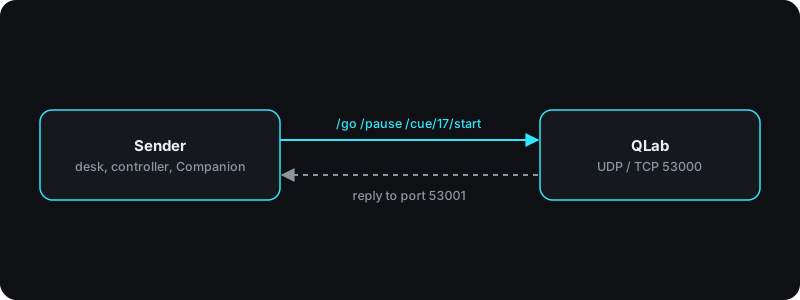
- QLab receives OSC on port 53000, over UDP and TCP.
- By default, QLab sends replies to UDP messages to port 53001.
- Each workspace can be set to a different port. QLab itself still listens on 53000.
The most important commands
The full list is in QLab’s OSC dictionary. For a show, these usually cover it:
| Command | What it does |
|---|---|
/go | GO, like the button in QLab |
/pause | Pause all running cues |
/resume | Resume paused cues |
/stop | Stop everything, reverbs and other effects decay naturally |
/hardStop | Stop everything immediately, effects included |
/panic | Fade everything out over the set panic time |
/playhead/next, /playhead/previous | Move the playhead one cue forward or back |
/cue/17/start | Start cue 17 without moving the playhead |
Without a prefix, commands go to every open workspace listening on that port. With /workspace/{id}/go you address one workspace specifically. Cue numbers in QLab are text: “1” and “1.0” are two different cues.
Passcodes and OSC Access
QLab 5 protects OSC access. Every new workspace gets a random four-digit passcode with full access. Devices without a passcode can’t connect by default, because the “No Passcode” row has all its boxes unticked.
You set this in Workspace Settings under Network, on the OSC Access tab. There are three permissions: View, Edit and Control. For a controller that only sends GO and pause, Control is enough. If a device can’t send a passcode, such as an ETC Eos console, tick the boxes in the “No Passcode” row. That’s fine on a show network. On an open network with devices you don’t know, think twice.
When nothing arrives
- Is OSC access enabled in the workspace, and does the sender have the right permissions?
- Are both devices on the same subnet? More on that in networking for show control.
- Are the IP address and port right in the sender? QLab listens on 53000.
- Is another app on the Mac using the port, an OSC monitor for example?
- Is the firewall blocking incoming connections for QLab?
- Is the spelling right? Spaces aren’t allowed in OSC addresses, and the cue number has to match exactly.
- Is the message coming over Wi-Fi? Use a cable to test.
Feedback from QLab
OSC works in both directions. QLab answers queries, so a controller can show what’s happening. Our OSC controller finds QLab on the network by itself, and in OSC mode GO lights green while cues are running and PAUSE lights orange when paused. You see the state without looking at the screen. Why we often prefer OSC to MIDI has its own article.